How to patch Ubuntu servers without surprise reboots
Keep Ubuntu security updates automatic but take control of reboots and service restarts: settings, a dry run, and how to confirm the patch took effect.

TL;DR
- Goal: keep security updates flowing on Ubuntu servers without a reboot or restart landing in the middle of your busiest hour.
- Key setting:
Unattended-Upgrade::Automatic-Reboot "false";in/etc/apt/apt.conf.d/50unattended-upgrades, plus a list-only restart mode for needrestart. - Rehearse every change with
sudo unattended-upgrade -v --dry-runbefore you trust it. - How to check it worked: read the log under
/var/log/unattended-upgradesand confirm no server is waiting for a reboot it never got.
Why surprise reboots happen, and why you should not just turn updates off
Ubuntu applies security updates by itself through the unattended-upgrades package, which is installed by default. That is the right default: an unpatched server is the bigger risk. The trouble starts when an update needs a reboot or a service restart to take effect, because the tool can be told to reboot on its own, and on newer releases a helper called needrestart can restart services without asking.
Many teams react by switching automatic updates off, and then forget to patch by hand. A better answer is to keep updates on and take control of the two disruptive steps: when the machine reboots, and which services restart. Canonical's own guidance says automatic updates are not a replacement for fleet management on large estates, so the sections below also show how to see what is pending across every server.
Before you start
- Root or sudo access to the server, and a test machine that matches production if you have one.
- A maintenance window agreed with whoever owns the services on the box, for the one reboot you will schedule yourself.
- A list of services that must never restart on their own, for example a database or a payment queue.
Step by step
- Make sure the tool is present. If the package is missing, install it with
sudo apt install unattended-upgrades. Right after installation, automatic security updates are enabled, including Expanded Security Maintenance where it is available. By default it runs once per day. - Check the schedule in
/etc/apt/apt.conf.d/20auto-upgrades. The linesAPT::Periodic::Update-Package-Lists "1";andAPT::Periodic::Unattended-Upgrade "1";mean the package lists refresh and the upgrades run every day. A value of zero switches the action off, so make sure nobody left it there. - Decide what may be installed automatically. In
/etc/apt/apt.conf.d/50unattended-upgradestheUnattended-Upgrade::Allowed-Originsblock lists the repositories to pull from. The default covers the main release and its security pocket only. Leave the-updatesline commented out if you want security fixes only. - Stop the tool from rebooting on its own. In the same file set
Unattended-Upgrade::Automatic-Reboot "false";, which is already the default. If you do want automatic reboots, schedule them rather than allowing them at any time:Unattended-Upgrade::Automatic-Reboot-Time "now";takes a clock time or an offset instead of the word now, and the time is read in the server's local timezone. - Protect fragile packages. The
Unattended-Upgrade::Package-Blacklistlist holds regular expressions. An entry such as"libc6$";blocks one package, and the dollar sign marks the end of the name. Blocking a package can also hold back updates that depend on it, so keep the list short. - Control service restarts. Since Ubuntu 24.04, needrestart restarts affected services automatically by default. Put a file in
/etc/needrestart/conf.d/, not in the main file, and set$nrconf{restart}to'l'so it only lists services that need a restart. To keep restarts on but exempt one critical service, use$nrconf{override_rc}and map that service name to0. - Rehearse the whole thing. Run
sudo unattended-upgrade -v --dry-run. It simulates the run, prints the allowed origins and lists the packages that would be upgraded, without changing anything. - Plan the reboot yourself. When an update asks for one, reboot the server in your window, one server or one group at a time, and keep the rest of the fleet serving traffic.
How to confirm it worked
First, read the log directory /var/log/unattended-upgrades. Each run writes a log there and the package manager output goes to a second file, so you can see what was installed and when. Second, run the dry run again after any configuration change and check that the allowed origins and the package list match what you intended. Third, if you set a report address with the Unattended-Upgrade::Mail option, set the report mode with Unattended-Upgrade::MailReport "on-change"; so you hear about every run that changed something. Sending mail needs a mail client such as ssmtp installed separately.
Finally, remember that installed is not the same as running. A new kernel or library only protects you once the machine has rebooted or the services have restarted. That is the gap that surprise reboots tempt people to close the wrong way.
How Stackurity helps
Stackurity matches the packages on every Ubuntu server against vendor advisories each hour, takes distribution backports into account, and flags hosts that are running older code than is installed, so a server waiting for its reboot does not look fixed when it is not. Updates are grouped into one fix per server, so the pending work is visible in one place instead of in forty mail reports.
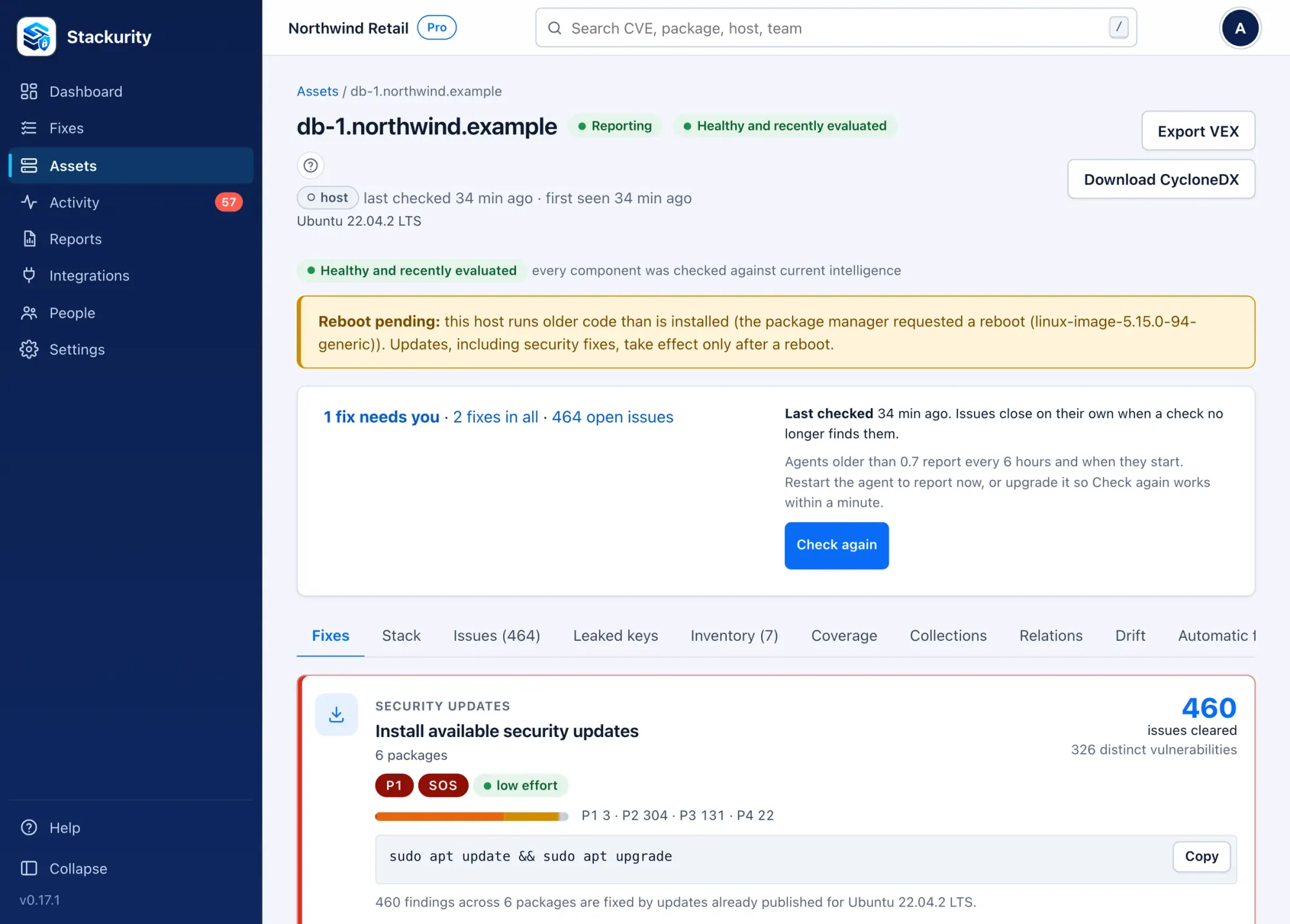
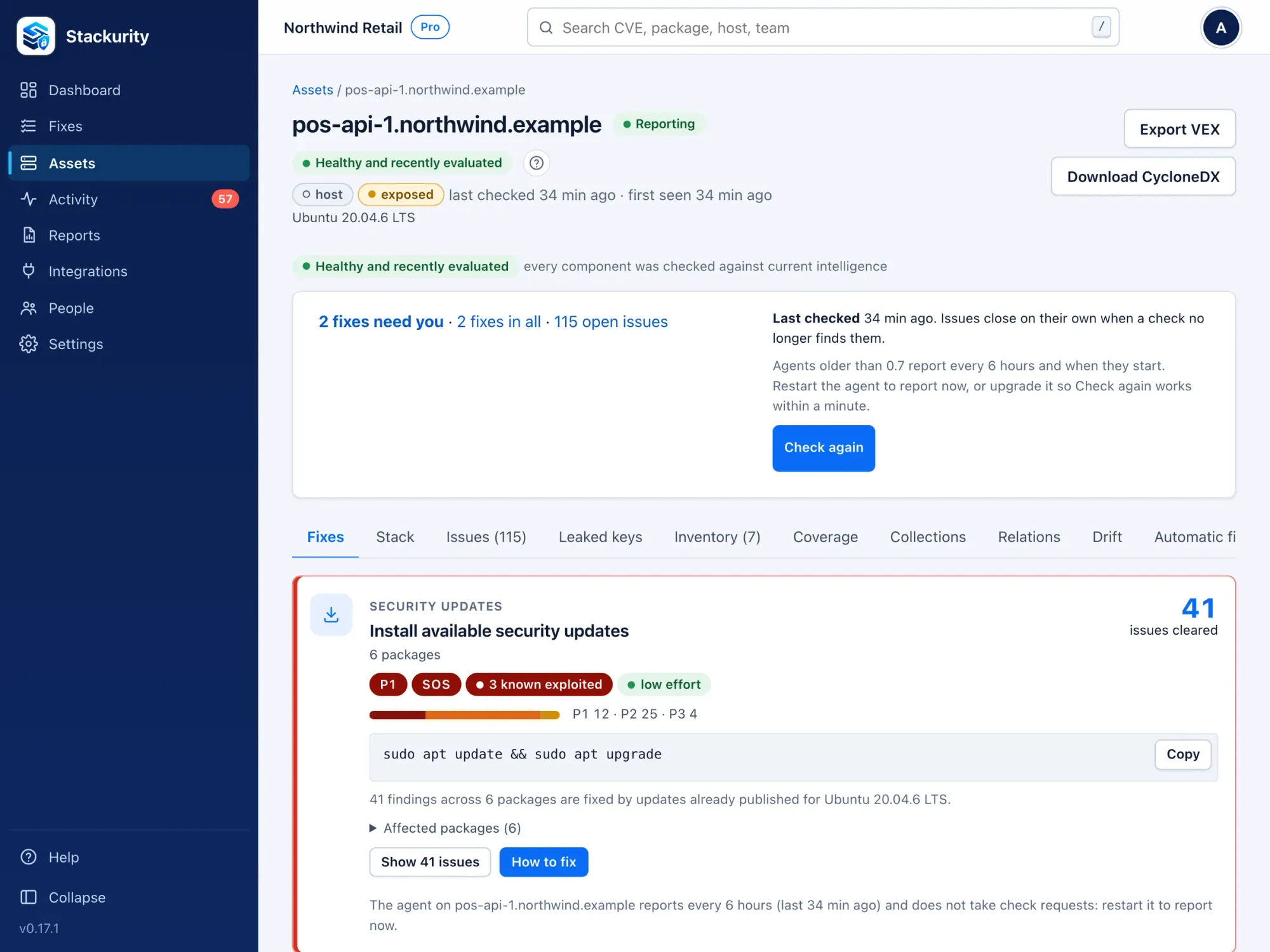
After the reboot, check again asks the agent for a fresh report and records whether the issue is really gone. Read more in the remediation documentation. Libraries copied into an application outside a package manager are not covered, and Stackurity does not assess appliance firmware, so keep checking those by hand. A related read: an Ubuntu advisory that extends a PHP library fix to older releases. Stackurity Cloud has a 14-day free trial without a card: start a free trial.
FAQ
Are automatic security updates on by default in Ubuntu?
Yes. The unattended-upgrades package is installed by default and applies security updates once a day without user interaction. You only need to change its settings, not turn it on.
How do I stop Ubuntu rebooting by itself after updates?
Set Unattended-Upgrade::Automatic-Reboot to false in the unattended-upgrades configuration file, which is also the default. The tool then only records that a reboot is recommended, and you reboot in your own maintenance window.
Can I patch a server without restarting its services?
Yes, for the timing. Set needrestart to list-only mode so it reports the services that run old files instead of restarting them. The update is installed, but it only takes effect for those services after you restart them yourself.
How do I test unattended upgrades before they run for real?
Run sudo unattended-upgrade -v --dry-run. It simulates an upgrade, shows which origins are allowed and which packages would change, and installs nothing.
Sources
Commands and settings come from the Ubuntu documentation: Automatic updates from Canonical, the unattended-upgrade manual page and the needrestart manual page. Product facts: Stackurity.